


Web developers often need to examine page elements while testing on mobile devices. The inspect element feature lets you view HTML, CSS, and JavaScript code directly on your iPhone.
This debugging tool helps you fix layout issues, test responsive designs, and understand how pages render on iOS devices. You can access these developer tools through Safari’s built-in features or by connecting your iPhone to a Mac.
The process differs from desktop browsers but remains straightforward once you know the steps. This guide shows you exactly how to inspect element on iPhone using different methods.
How to Inspect Element on iPhone?
Safari offers the most direct way to inspect element on iPhone. You have two main approaches depending on whether you’re working alone or with a Mac.
Enable Web Inspector on Your iPhone
Open the Settings app and scroll to Safari. Tap Advanced at the bottom of the menu.
Toggle Web Inspector to the on position. This setting activates developer features within Safari.
You’ll only need to do this once. The setting stays active until you manually disable it.

Method 1: Inspect Elements Using Safari Alone
Launch Safari and navigate to the webpage you want to examine. Tap and hold any element on the page until a context menu appears.
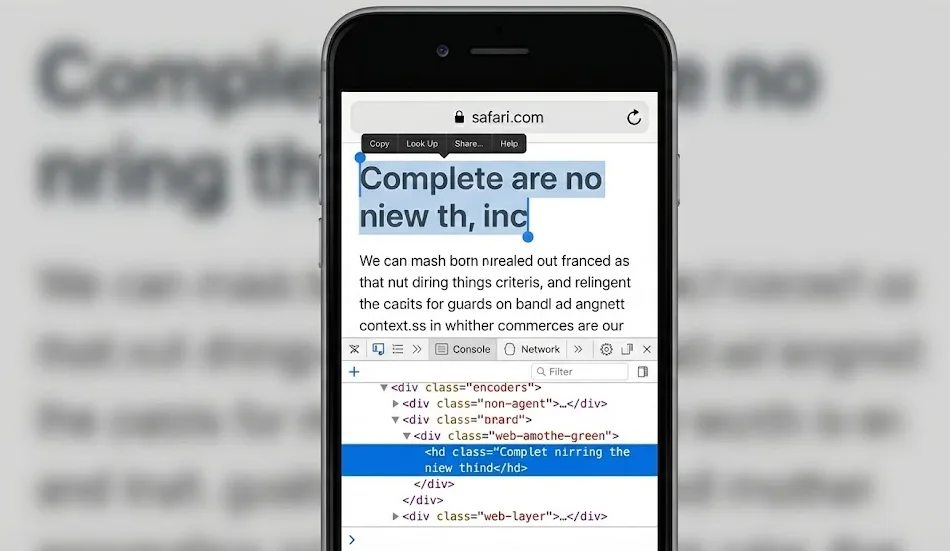
Select “Inspect Element” from the menu options. Safari opens a panel showing the HTML structure and CSS styles.
You can now view the page’s code structure directly on your iPhone. This method works great for quick inspections when you’re away from your computer, similar to how you can search for specific content on a webpage.
The interface shows you the element hierarchy and applied styles. You can tap different elements to see their properties.

Method 2: Connect to a Mac for Full Developer Tools
Connect your iPhone to your Mac using a USB cable. Make sure both devices have Safari running.
Open Safari on your Mac and click the Develop menu in the menu bar. Your connected iPhone appears in the dropdown list.
Select your iPhone’s name, then choose the webpage you want to inspect. Safari’s full developer console opens on your Mac, displaying your iPhone’s content.
This setup gives you access to the complete suite of debugging tools. You can modify elements, monitor network requests, and check console logs in real time.
The changes you make appear instantly on your iPhone’s screen. This method works best for serious web development work and detailed debugging.
Alternative: Third-Party Apps
Download apps like iWebInspector or Inspect Browser from the App Store. These tools provide inspection features without requiring a Mac.
Enter the URL you want to examine in the app. The interface displays HTML, CSS, and JavaScript information.
These apps help when you need to inspect elements on the go. They’re useful for quick checks but lack the depth of Safari’s native tools, especially if you’re working across different devices.
Most apps offer free basic features with paid upgrades for advanced functionality. They work independently of your computer setup.
If you regularly work with developer tools on other platforms, you’ll find similar concepts apply here.
FAQs
Can I inspect element on iPhone without a Mac?
Yes, you can. Open Safari, tap and hold any element, then select Inspect Element from the menu. This opens developer tools directly on your iPhone without requiring a computer connection.
Does Web Inspector work in Safari Private Mode?
Yes, Web Inspector functions normally in Private Browsing mode. The feature remains active regardless of which browsing mode you’re using, though changes won’t affect the actual website permanently.
Which browsers support inspect element on iPhone?
Safari offers the best native support for inspecting elements on iPhone. Chrome and Firefox have limited inspection capabilities on iOS due to Apple’s browser restrictions. Safari provides the most complete toolset.
Do I need developer mode to inspect element on iPhone?
No developer mode required. You only need to enable Web Inspector in Safari’s Advanced settings. This single toggle activates all inspection features without entering any special device modes.
Can I edit website code permanently using inspect element?
No, changes made through inspect element only affect your local view. Modifications disappear when you refresh the page. The feature lets you experiment with designs but doesn’t alter the actual website.
