


Chromebooks run Chrome OS, which works well for basic tasks but limits your software choices. Running Linux on your Chromebook opens access to thousands of applications that Chrome OS doesn’t support natively.
You might want Linux for programming, advanced photo editing, or specialized tools. Modern Chromebooks make this easier than ever through built-in features.
This guide shows three methods to run Linux on your Chromebook. Each approach suits different needs and skill levels. You can start with the simplest option and move to advanced setups as needed.
The right method depends on your Chromebook model and what you want to accomplish.
How to Run Linux on Your Chromebook?
You have three main options to run Linux on your Chromebook. Each method offers different levels of integration and complexity.
Enable Linux Through Chrome OS Settings
Most newer Chromebooks include built-in Linux support called Crostini. This is the safest and easiest way to run Linux on your Chromebook.
Open Settings by clicking the clock in your screen’s bottom-right corner. Scroll to find the “Developers” section and look for “Linux development environment.”
If you don’t see this option, your Chromebook doesn’t support Crostini. You’ll need to try the other methods below.
Click “Turn on” next to Linux development environment. The system will prompt you to allocate disk space for Linux. Choose at least 10GB if available.
Click “Install” and wait for the setup to complete. A terminal window will open when installation finishes.

Update Your Linux System
Type these commands in the terminal and press Enter after each one:
sudo apt update
sudo apt upgrade
These commands ensure your Linux system has the latest software versions. Run them periodically to keep everything current.
Install Linux Applications
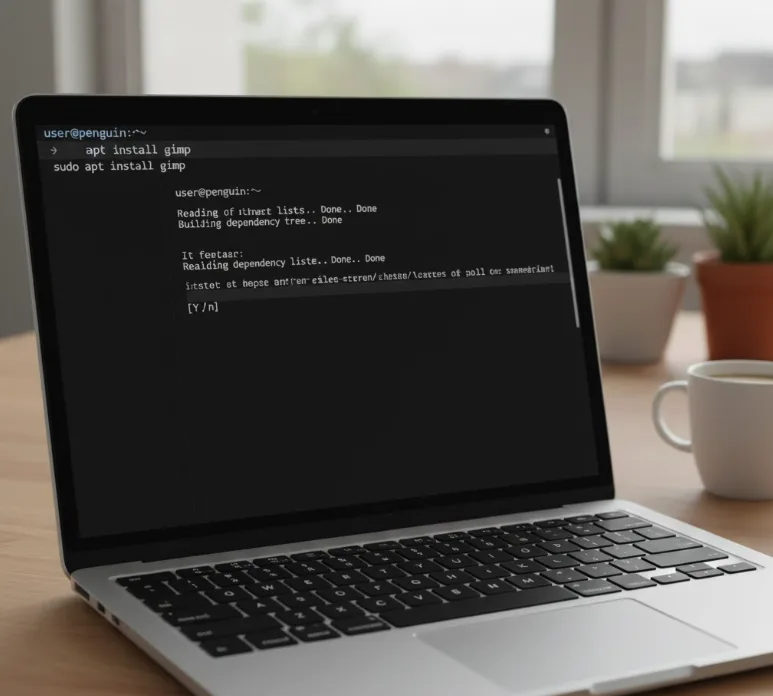
You can now install any Linux application through the terminal. For example, to install GIMP image editor, type:
sudo apt install gimp
Press Enter and confirm when prompted. After installation, find your new apps in the Chrome OS launcher under “Linux apps.”
Access Files Between Systems
Linux apps can’t directly access your regular Chrome OS files. Drag files into the “Linux files” folder in the Files app to use them with Linux applications.
This keeps Linux apps sandboxed for security while still allowing file access when needed.
Install Crouton for Full Desktop Experience
Chromebooks without built-in Linux support can use Crouton. This method installs a complete Ubuntu desktop alongside Chrome OS.
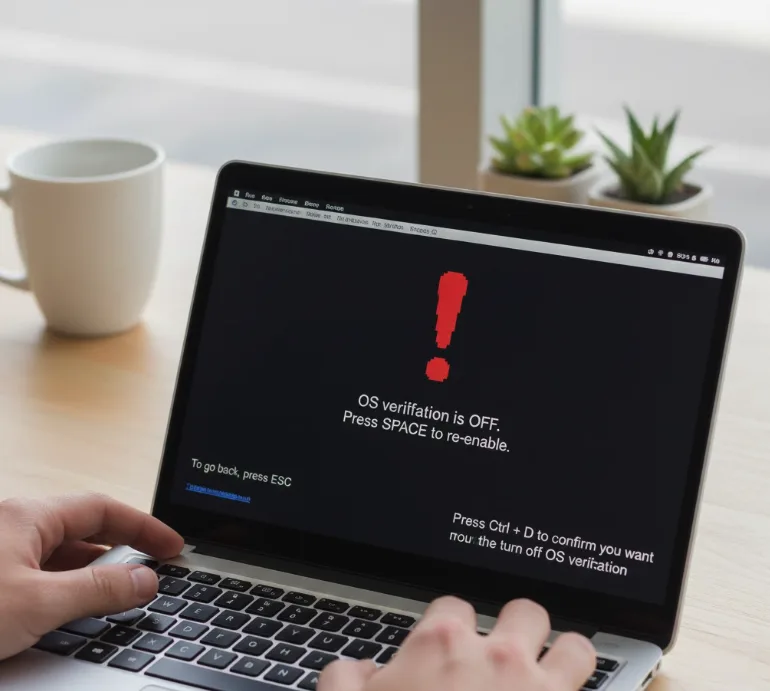
First, enable Developer Mode. Turn off your Chromebook, then hold Esc and Refresh while pressing Power.
At the recovery screen, press Ctrl + D. Confirm that you want to turn off OS verification.
Your Chromebook will restart and erase all local data. This process takes several minutes.
Download the Crouton script from the official GitHub repository. Open a terminal by pressing Ctrl + Alt + T, type shell, and press Enter.
Install Crouton with these commands:
sudo install -Dt /usr/local/bin -m 755 ~/Downloads/crouton
sudo crouton -t xfce
The installation takes 20-30 minutes. When finished, start your Linux desktop by typing:
sudo enter-chroot startxfce4
Switch between Chrome OS and Linux using Ctrl + Alt + Shift + Back and Ctrl + Alt + Shift + Forward.
Set Up Dual-Boot Configuration
Advanced users can install Linux as a separate operating system. This gives you a full Linux experience independent from Chrome OS.
You need Developer Mode enabled and the chrx installer tool. Open a terminal with Ctrl + Alt + T, type shell, and press Enter.
Download and run chrx:
cd ; curl -Os https://chrx.org/go && sh go
Follow the prompts to partition your drive. The installer will guide you through choosing a Linux distribution like GalliumOS or Ubuntu.
After installation completes, press Ctrl + L at startup to boot into Linux. Press Ctrl + D to return to Chrome OS.
This method requires managing drivers and system updates manually. It offers maximum flexibility but needs more technical knowledge.
Before starting any advanced installation method, create a recovery USB drive to restore Chrome OS if needed.
FAQs
Can all Chromebooks run Linux?
Most Chromebooks from 2019 onwards support Linux through Crostini. Older models may need Crouton or dual-boot methods. Check your Settings for “Linux development environment” to confirm compatibility.
Will installing Linux void my Chromebook warranty?
Using Crostini doesn’t affect your warranty. Enabling Developer Mode for Crouton or dual-boot may void warranty on some models. Check your manufacturer’s policy before proceeding with advanced methods.
How much storage space does Linux need?
Crostini requires at least 10GB of free space. Crouton needs 5-8GB minimum. Dual-boot installations require 16GB or more depending on your chosen Linux distribution and planned software installations.
Is running Linux on a Chromebook secure?
Crostini runs Linux in a secure container and maintains Chrome OS security. Developer Mode reduces security by disabling verified boot. Only use Developer Mode if you understand the risks involved.
Can I remove Linux after installing it?
Yes. Delete Crostini through Chrome OS Settings under Linux development environment. For Crouton or dual-boot, use a recovery USB to restore Chrome OS completely and remove all Linux installations.
